An interactive coloring activity your whole class can watch
Students color printed characters at their desks. You scan the finished pages with your phone, and each one joins a shared animated scene on the classroom projector — no student accounts, no app, and no photos of students uploaded.
Free to start — no app, no card. Works with any phone and any screen with a web browser.
 1. The printed sheet
 2. Colored and cut out on the phone
Made for a room full of students
Classroom controls that stay simple
You can approve every drawing
Switch off “Auto-approve” in the room settings and each drawing waits for you before it appears. You can also remove anything from the screen with one tap.
No student accounts or emails
Students never sign in. The first-name label is optional, names are filtered for profanity, and you can leave names off entirely — which we recommend for school rooms.
No photos of students
The phone processes the camera image itself and sends only the cut-out drawing. Rooms and drawings are deleted automatically about a week after the room ends. Read the privacy policy.
Runs on the hardware you have
The scene runs in a web browser on the projector computer, interactive display or a smart TV. Students without a printed sheet can color on a tablet instead.
Running it in a lesson
From printing to the big reveal
Before class: create a room and print
Create a room with “Prepare now, start later” and download the packet of printable character sheets. Print a class set on a regular printer; black-and-white is fine.
Put the scene on the projector
Open the room’s display link in the browser on the classroom computer, or pair a smart TV by opening draw2life.com/link on it and scanning the code.
Choose whether to approve drawings
Switch off “Auto-approve” so you see each drawing before the class does. Leave artist names off for school rooms.
Start the room and color
Press Start when students begin. Coloring takes most of the session; the screen fills up as pages are finished.
Scan pages as students finish
Walk the room with one phone, or scan at your desk as students bring pages up. Each character appears on the projector seconds later.
What students color
The year-round Coral Reef characters
The Coral Reef scene runs all year with 7 characters — Clownfish, Crab, Octopus, Shark, Tang, Seahorse and Moray Eel — a natural fit for an ocean or sea-life topic. Seasonal scenes add their own characters while their dates are open.
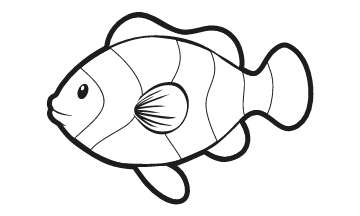 Clownfish
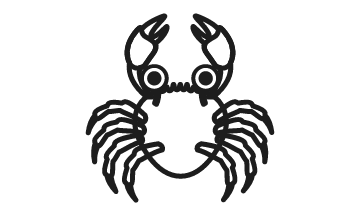 Crab
- Octopus
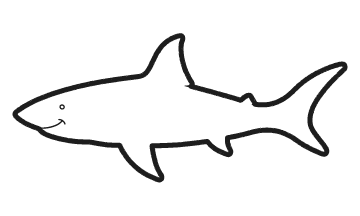 Shark
 Tang
 Seahorse
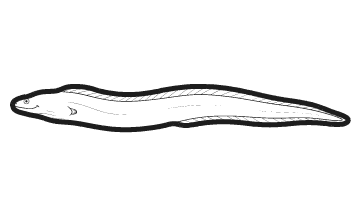 Moray Eel
Plans for a class
Which plan fits your class size?
| Free | Event Pass | Pro | |
|---|---|---|---|
| Price | $0 | $19 one-time | $29/month |
| Drawings per room | Up to 15 | Up to 100 | Newest 1,000 kept |
| Room stays live | 4 hours | 48 hours | While subscribed |
| Rooms at once | 1 | 1 | 5 |
| On screen at once | Up to 15 | Up to 35 | Up to 50 |
The Free plan holds 15 drawings, so try it with a small group first. For a full class to fit in one room, use an Event Pass or Pro. Schools and educators can ask support about discounted Pro pricing.
Ideas
Ways teachers and librarians use it
- An ocean or sea-life topic: each student colors a reef animal and the class builds one shared reef together.
- A Friday reward or rainy-day indoor activity that is mostly hands-on coloring, with the screen as the payoff.
- Library story time and summer reading programs: kids color while the story or program runs, and the scene fills up as they finish.
- Family nights and open houses: keep a room running on a hallway screen while families color together.
FAQ
Common questions
Do students need devices or accounts?
No. Students color on paper, and the teacher scans the pages with one phone. Nobody signs in, and no student email or account is collected. Students can color on a tablet instead of paper if you prefer.
Can I review drawings before the class sees them?
Yes. Switch off "Auto-approve" in the room settings and every drawing waits for you to approve it before it appears. You can also remove any drawing from the screen with one tap.
Are photos of students collected?
No. The camera image is processed on the phone, which sends only the flat cut-out drawing. No photo is uploaded, and rooms and drawings are deleted automatically about a week after the room ends.
Will it work on our projector or interactive display?
Yes, if the computer or display can open a modern web browser. Open the room's display link on the classroom computer connected to the projector, or pair a smart TV at draw2life.com/link. Nothing needs to be installed.
How many students can take part?
Any number of students can be scanned into a room. The room holds up to 15 drawings on the Free plan, 100 on an Event Pass, and keeps the newest 1,000 on Pro.
Is there education pricing?
Discounted Pro pricing may be available for schools and educators. Contact support@draw2life.com to ask.
Are students' names shown on screen?
Only if you turn names on. The first-name label is optional and filtered for profanity, and we recommend leaving it off for school rooms.
Keep reading
More ways to use Draw2Life
Try it with your class
Create a free room, print a set of character sheets, and put your students' drawings on the projector.